Add a recipe menu item
Two kinds of menu item

Recipe menu item
This guide- Made
- In the kitchen
- Linked to
- A recipe
- When sold
- Drains kitchen stock
- Cost from
- Recipe ingredients
- Approval needed
- Yes, before costing
- Examples
- Fried rice, lattes

Retail menu item
Own guide- Made
- Bought in, sold as-is
- Linked to
- A stock product
- When sold
- Deducts inventory stock
- Cost from
- Purchase price
- Approval needed
- No
- Examples
- Bottled water, canned goods
Every recipe menu item needs

A recipe, AI or manual

Recipe set to Approved

An item photo
Open recipes
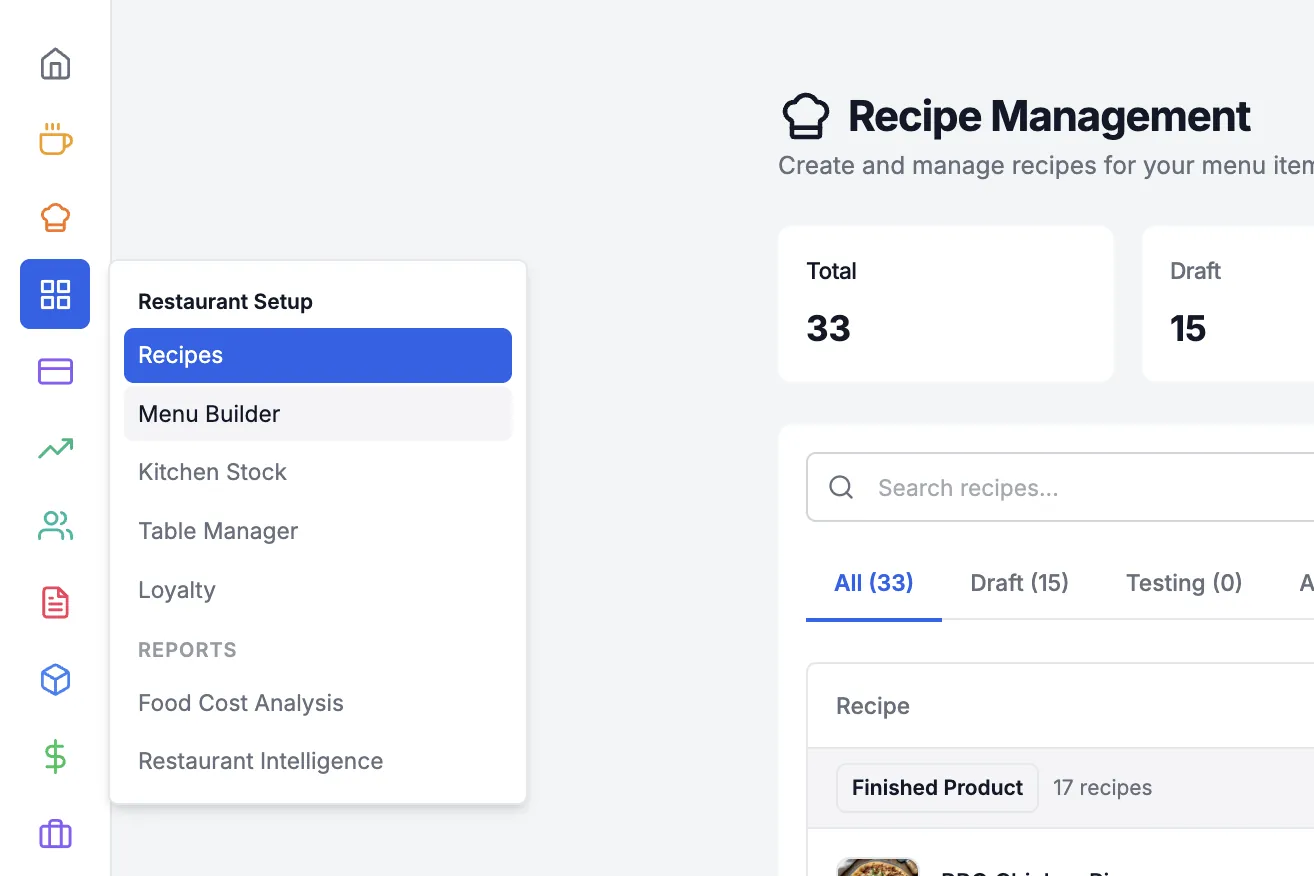
1/101Point to the setup icon
2Click Recipes
Start a recipe
2/101Click Create Recipe
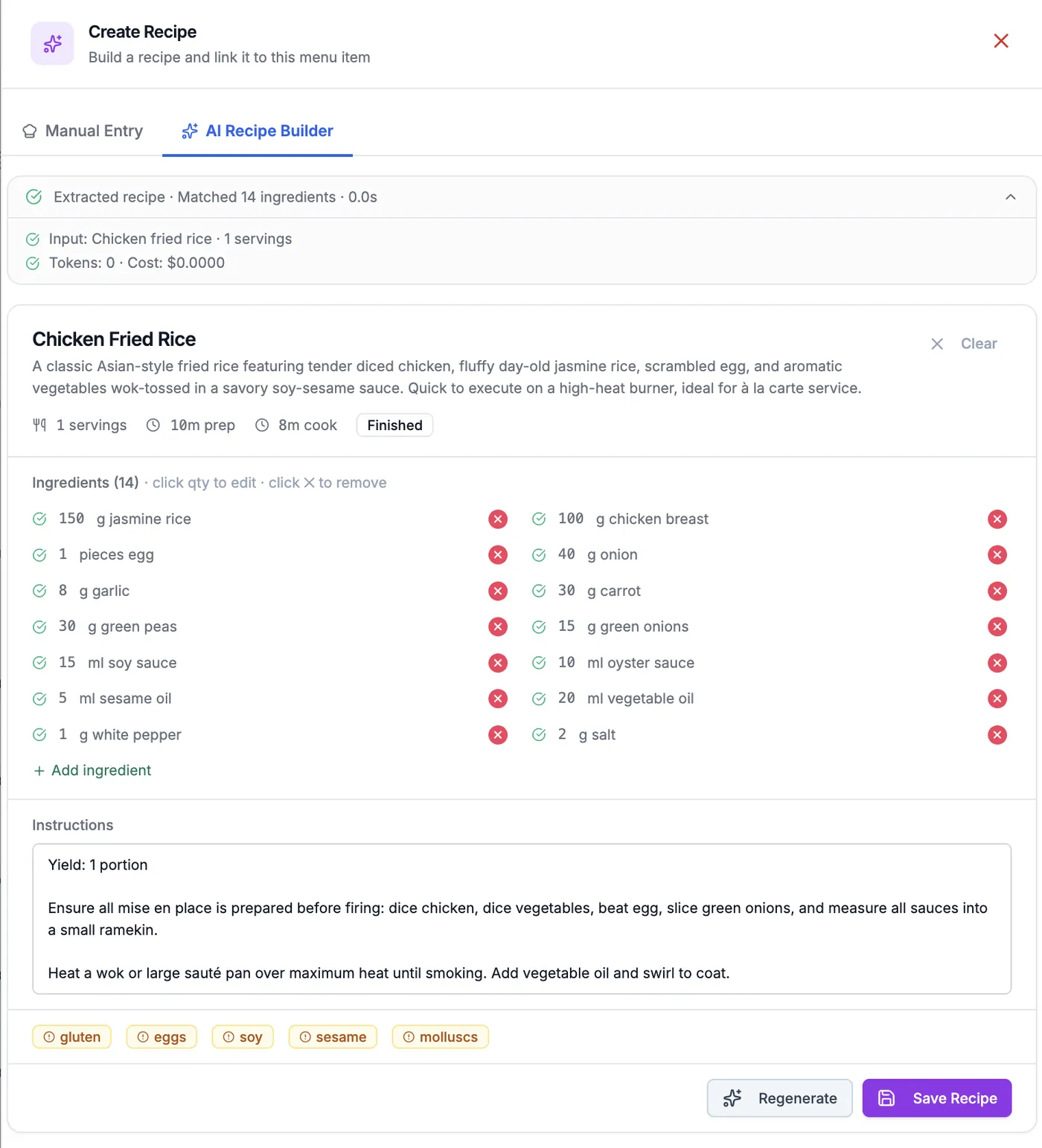
Describe the dish
3/101Open AI Recipe Builder
2Type the dish nameType in the dish name. Then you may add ingredients used in your restaurant or other key highlights you want.
3Send
Prefer typing? Use Manual Entry
Review and save
4/101Check the ingredientsYou may remove the ingredients you do not use in the dish. You can edit the quantities here as well.
2Click Save Recipe
Approve the recipe
5/101Click Draft
2Choose Approved
Only approved recipes can link
Open Menu Builder
6/101Point to the setup icon
2Click Menu Builder
Add a recipe item
7/101Click Add item
2Choose Recipe Item
No category? Add Category first
Link recipe, add photo
8/101Search and pick the recipe
2Must show Approved
3Add a photo
Set the price
9/101Open Pricing
2Enter the Base Price
3Click Add Item
Check tax and service charge
Make it available
10/101Switch on Available
2Item photo shows here
When it sells
Is the recipe approved?
Live on the POS