Manage shifts, one or many
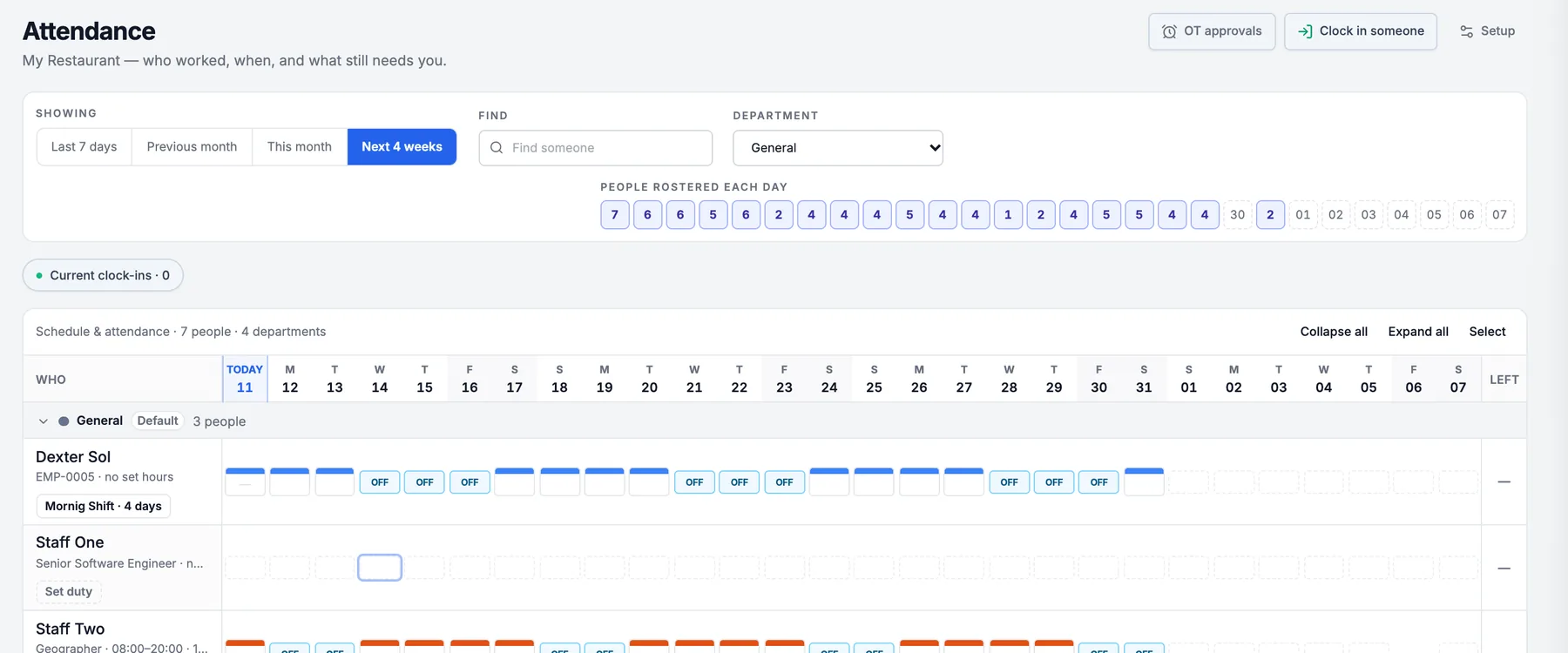
Click the day
1/101Choose Next 4 weeksOr This month. The grid only shows the days inside the window.
2Click the person's dayAny cell opens the same panel. Paid days are locked.
Add a shift
2/101Click + Shift
2Pick a presetThe list is what this unit runs. Custom hours… asks for a start and end instead.
It saves at once
Open the shift
3/101Click the rostered shiftThe row shows the shift the day carries. Clicking it opens the picker.
Change it or take it off
4/101Pick another preset
2Click Change it
3Or Take it offOnly that block goes. Worked hours and clock-ins stay.
Repeat on other days
5/101Tap the weekdaysOpens from the "Repeat this on other days" link under the picker.
2Set until
3Click Roster those days
Days with a shift already are left alone
Start selecting
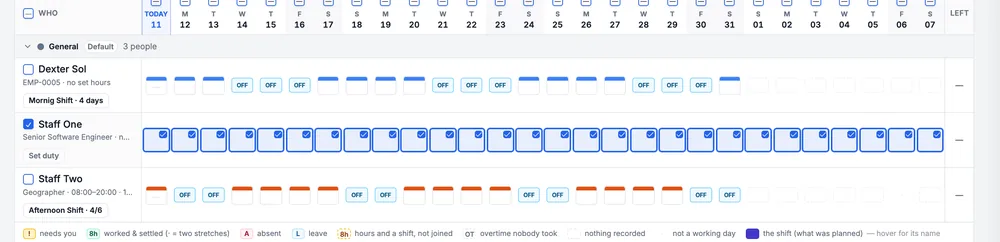
6/101Click SelectCheckboxes appear on every name, date and cell. Cells stop opening the panel until you click Done selecting.
Tick people and days
7/101Tick a nameThe whole visible row for that person.
2Or a dateSingle cells work too. Paid days stay locked.
3Click Actions
Up to 500 cells at a time
Choose the action
8/101Click Roster shifts…
2Or Remove shifts…Clear schedules… takes every unworked shift off the selected days in one go.
Roster them all
9/101Choose the HoursA preset, or Custom hours with a start and end.
2Keep Regular
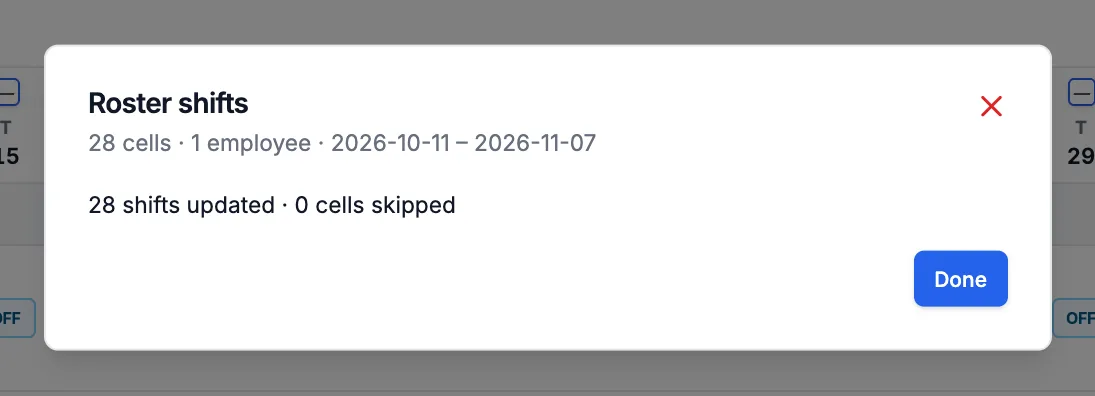
3Click Roster shifts
Days that already have a shift are skipped
Remove in bulk
10/101Choose what to RemoveRegular shifts, Overtime shifts, or one named preset.
2Click Remove shiftsClock-in history, paid days and a person's standing duty are kept.
Only unworked shifts go
Bulk never touches
Days already worked
Paid days
A person's standing duty
Done, with a receipt
A count, plus what was skipped and why